📊 Guide to Viewing and Analyzing Student Results
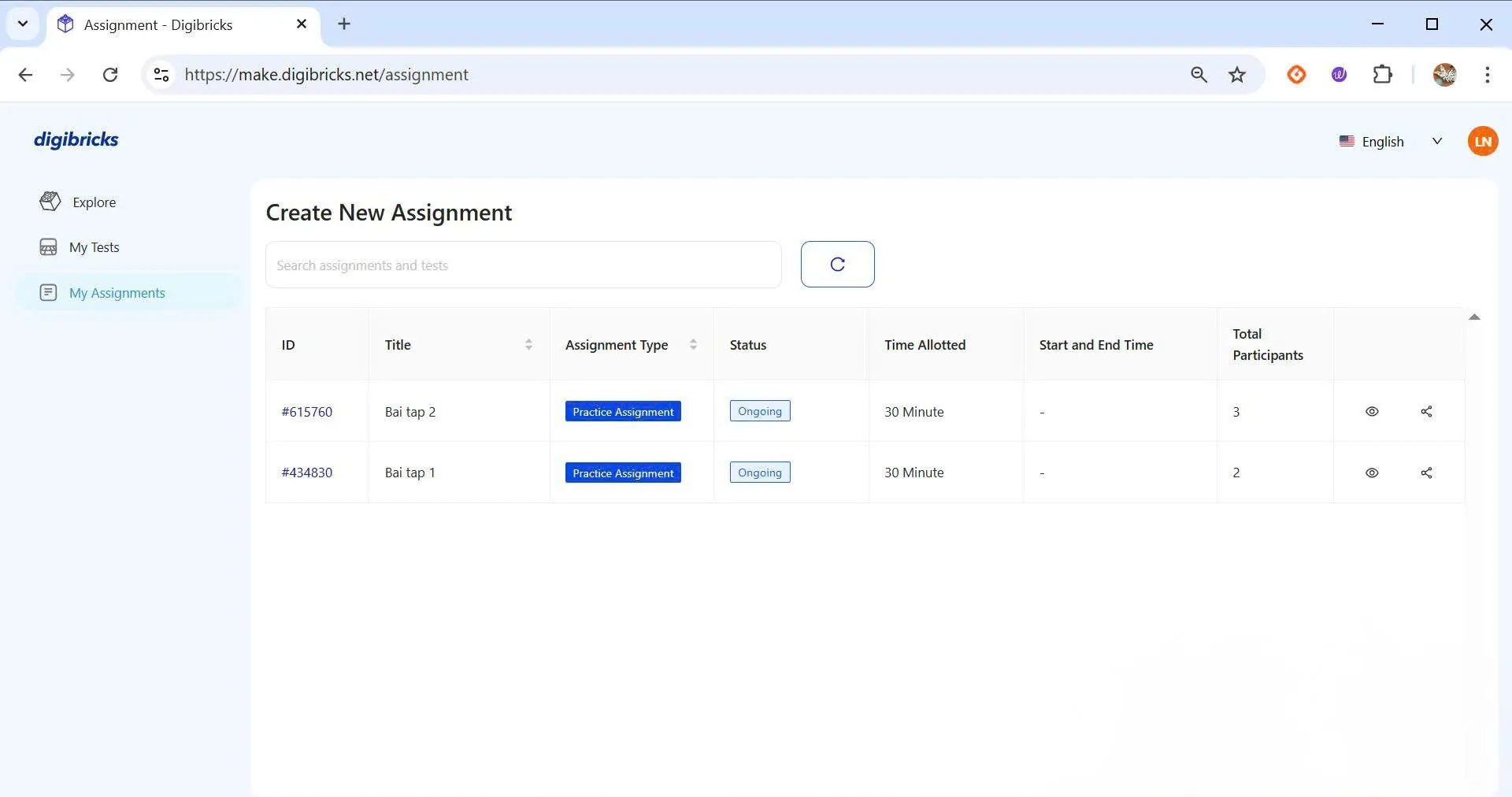
Step 1: Access the assignment you want to review
From the left menu, select My Assignment → click on the ID of the assignment you want to track.
Step 2: View the overall results
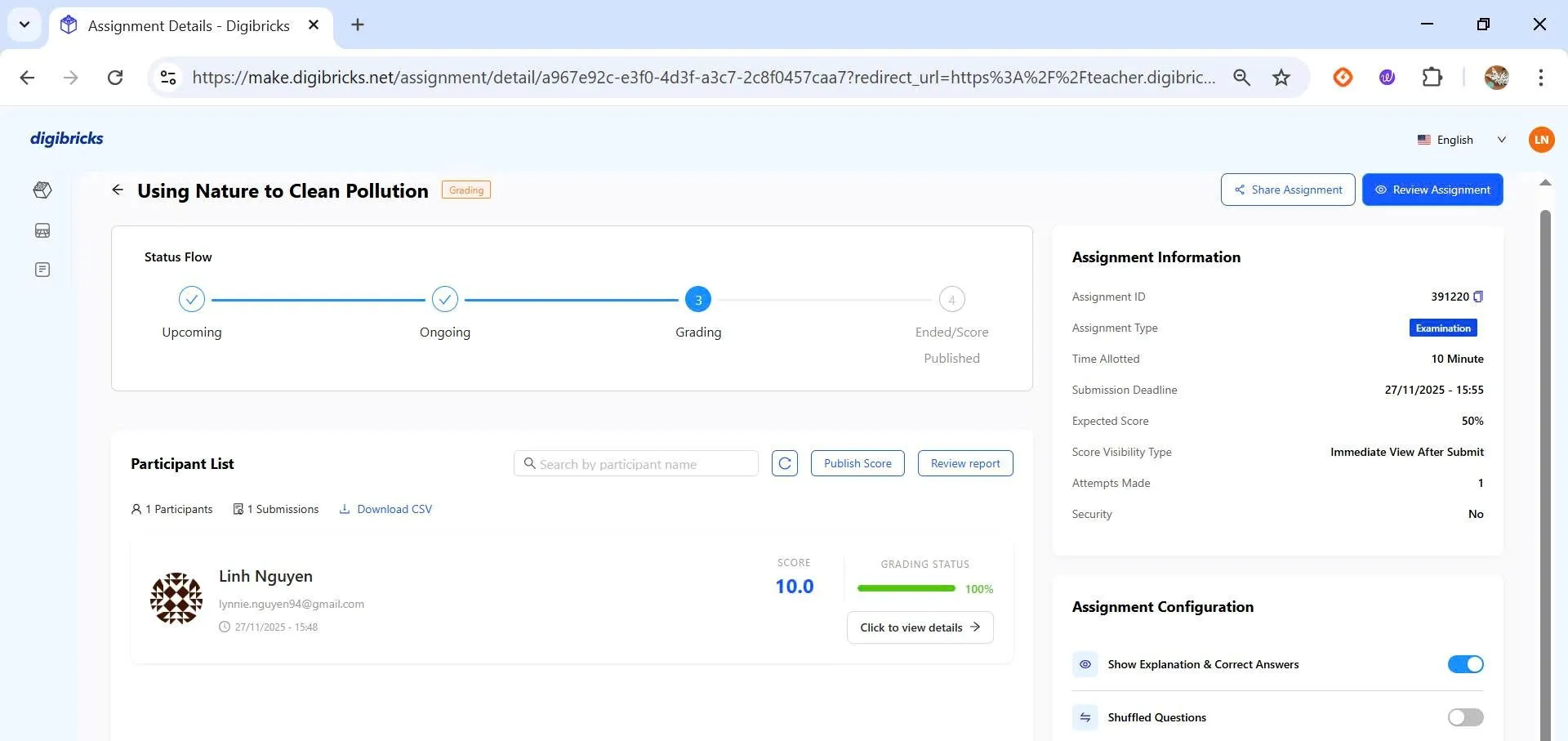
In the Assignment Detail page, you will see general information such as:
- Status flow
- Participant list
- Assignment information
- Assignment configuration
Step 3: View detailed results for each student
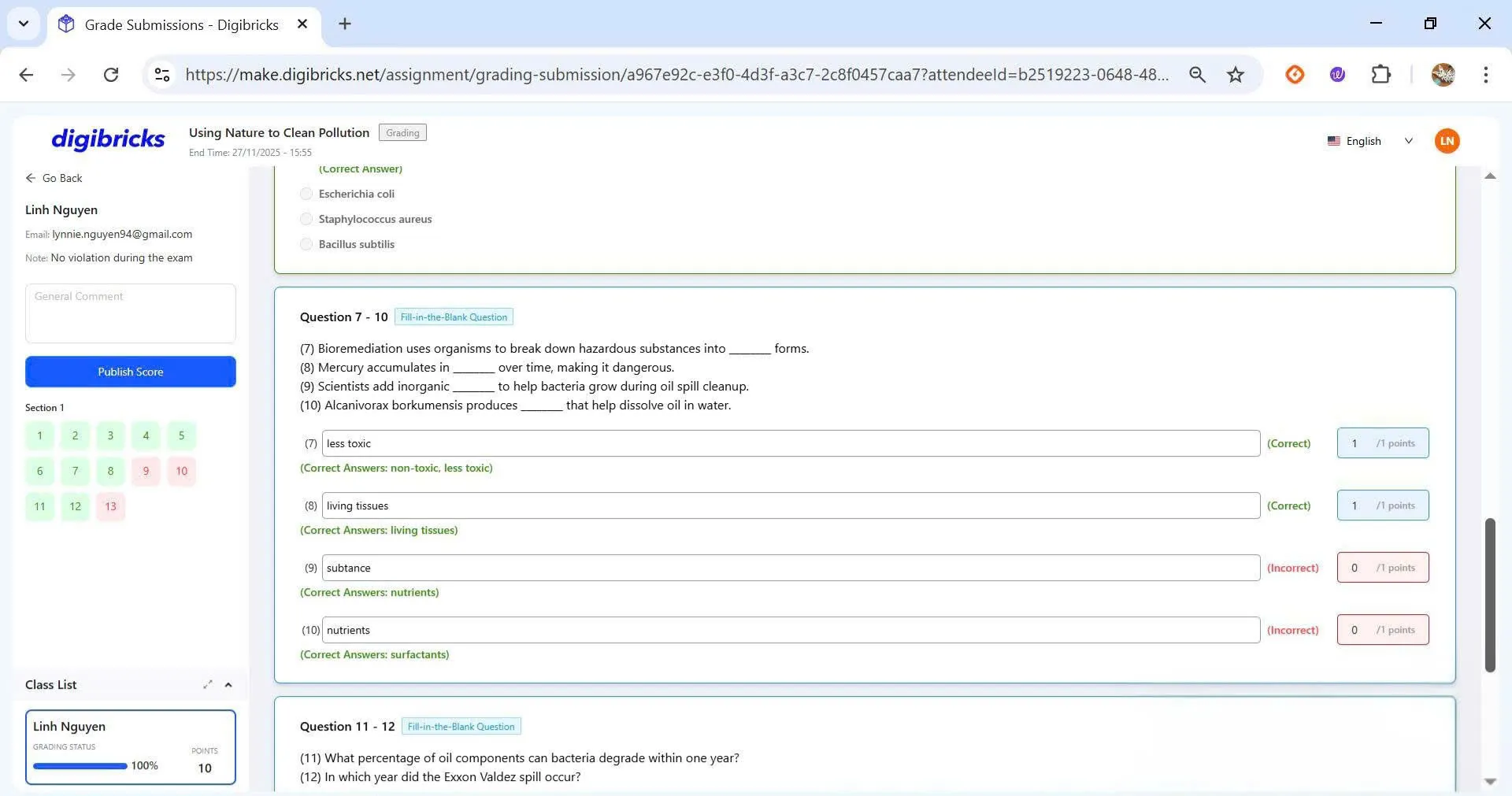
Choose Click To View Details next to each student to view:
- The total score
- Detailed answers
- Publish score
📈 Advanced Analysis for Examination Assignments
For tests created under the Examination mode, Digibricks provides the Review Report tool, allowing teachers to conduct a deeper analysis of students’ performance.
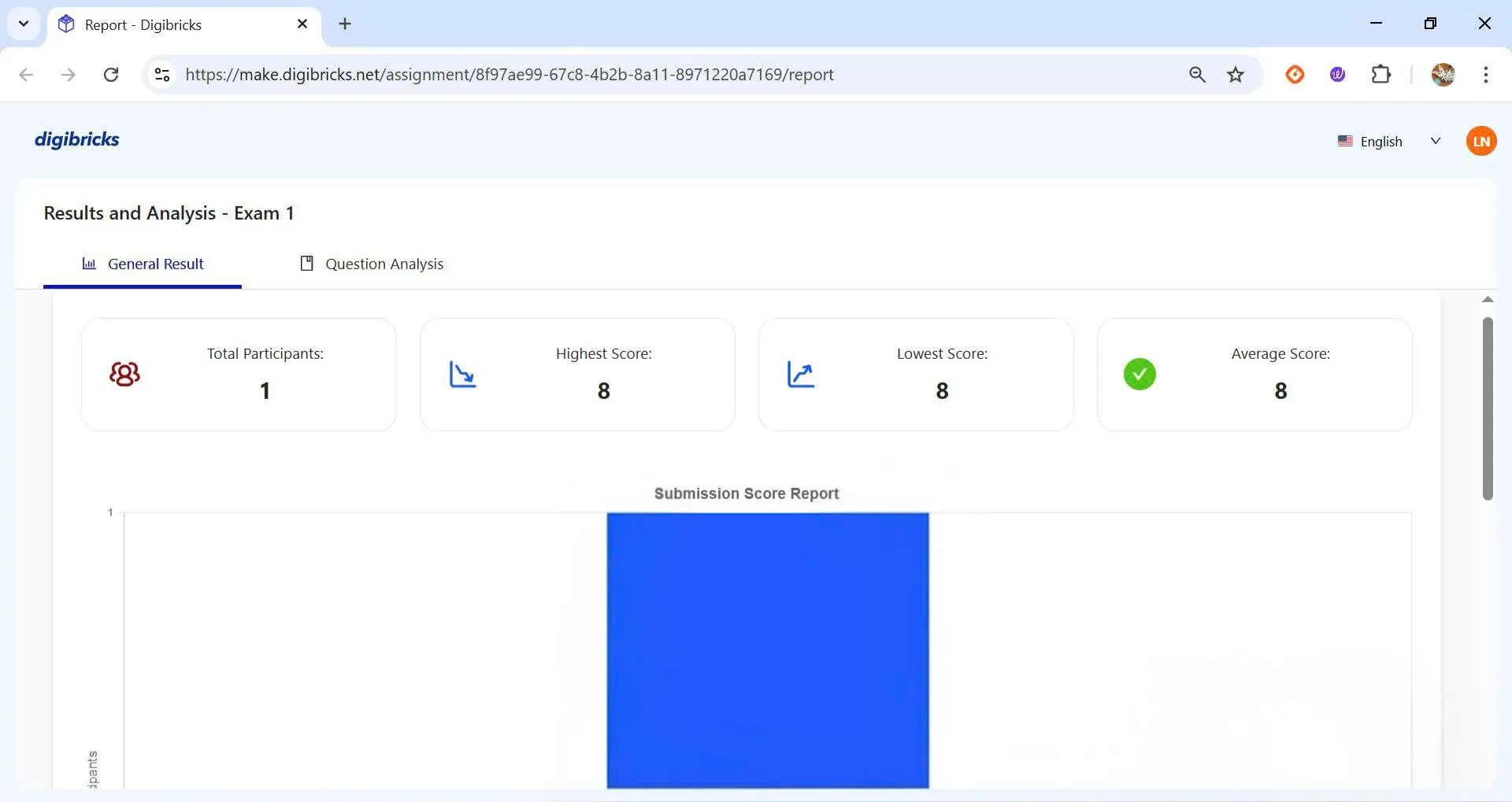
1. General Result Tab
In the General Result tab, the system displays a score distribution chart for all students.
Teachers can easily identify:
- The highest score
- The lowest score
- The class average score
💡 This is a useful tool for evaluating the difficulty level of the test and the overall learning performance of the class.
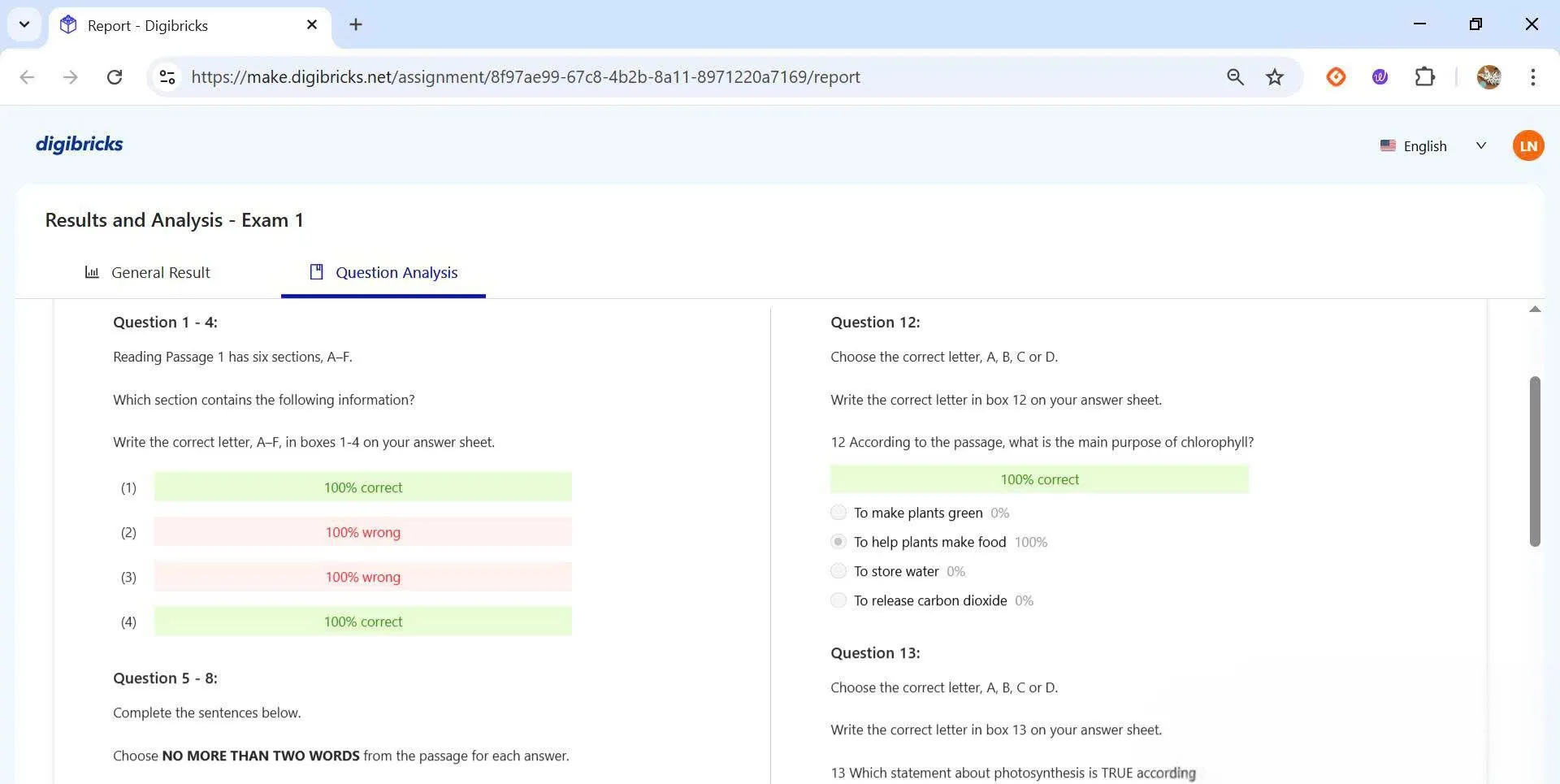
2. Question Analysis Tab
In the Question Analysis tab, the system shows the correct/incorrect response rate for each question.
This information helps teachers:
- Identify questions that many students answered incorrectly
- Assess student understanding by skill or topic
- Adjust teaching plans or re-explain concepts that students struggled with