
🎯 Guide to Creating Assignment
In addition to creating tests, Digibricks provides the Assignment tool, allowing teachers to assign homework to students and track their progress and results with ease.
Step 1: Access the Assignment feature
Method 1:
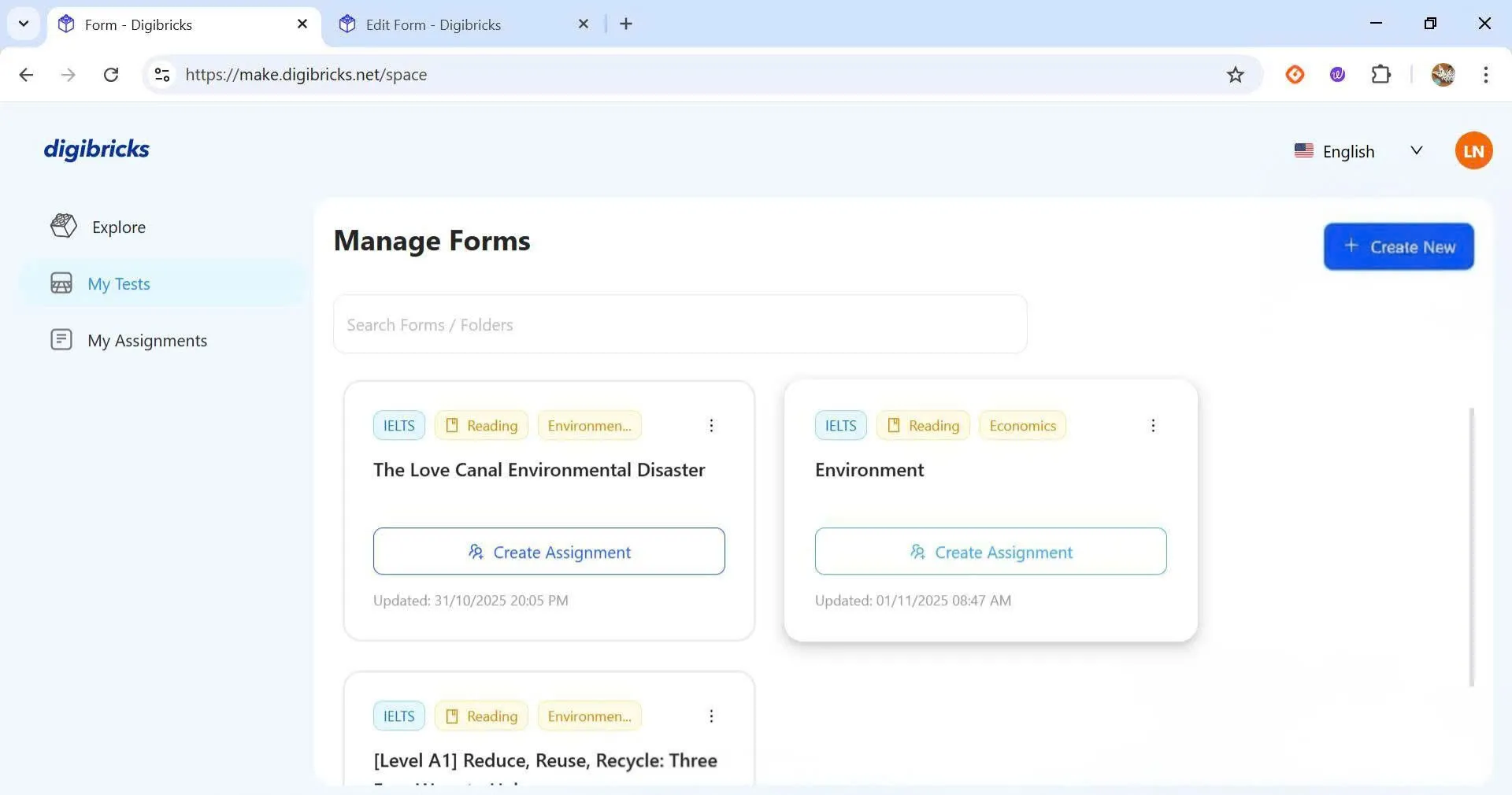
- Select My Test from the left menu.
- In Manage Forms, choose the saved reading passage or test.
- Click Create Assignment to start assigning.
Method 2:
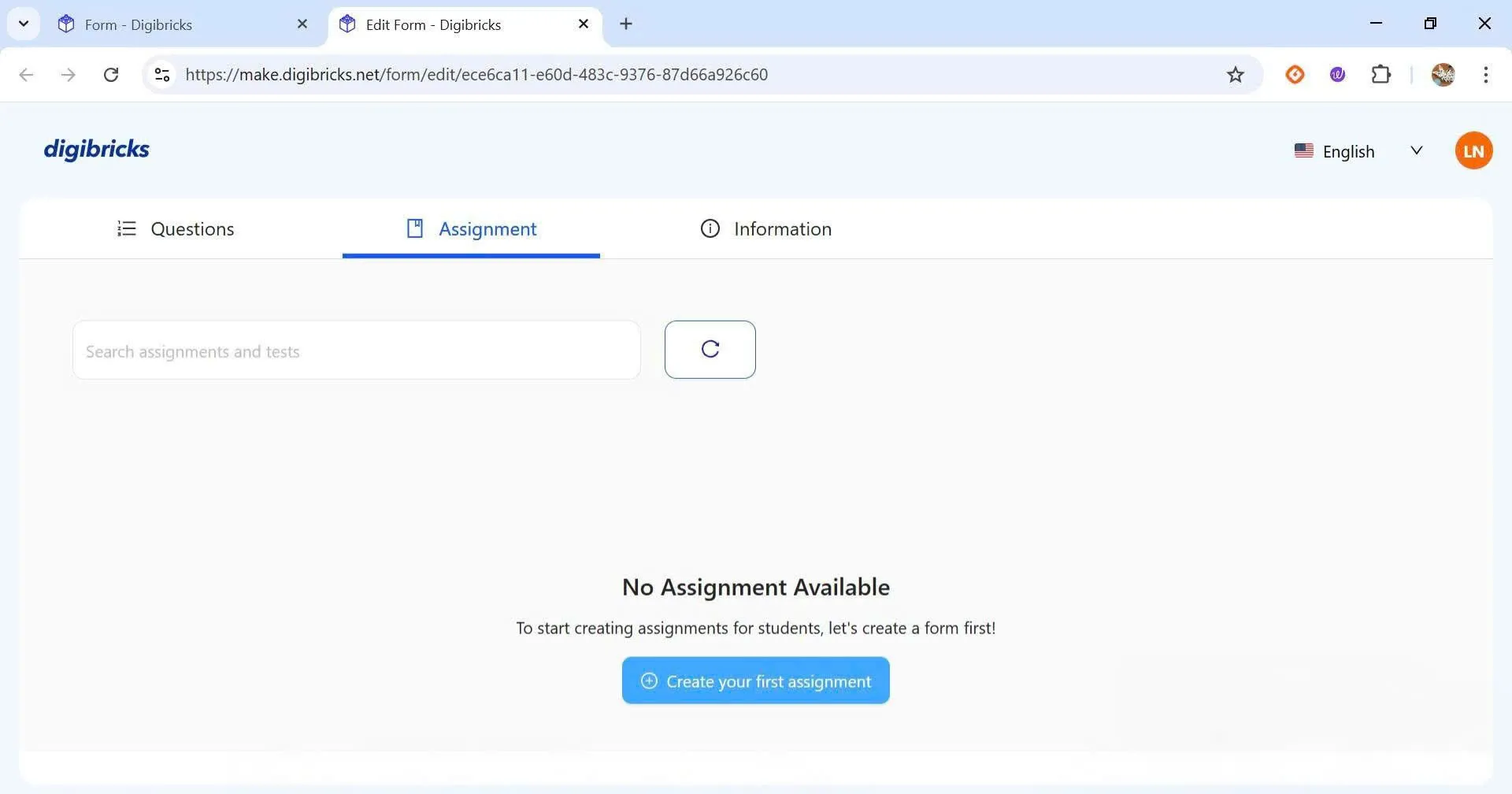
- While editing a reading passage or test, go to the Assignment tab.
- Select Create Your First Assignment to begin using the assignment feature.
Step 2: Choose the assignment type
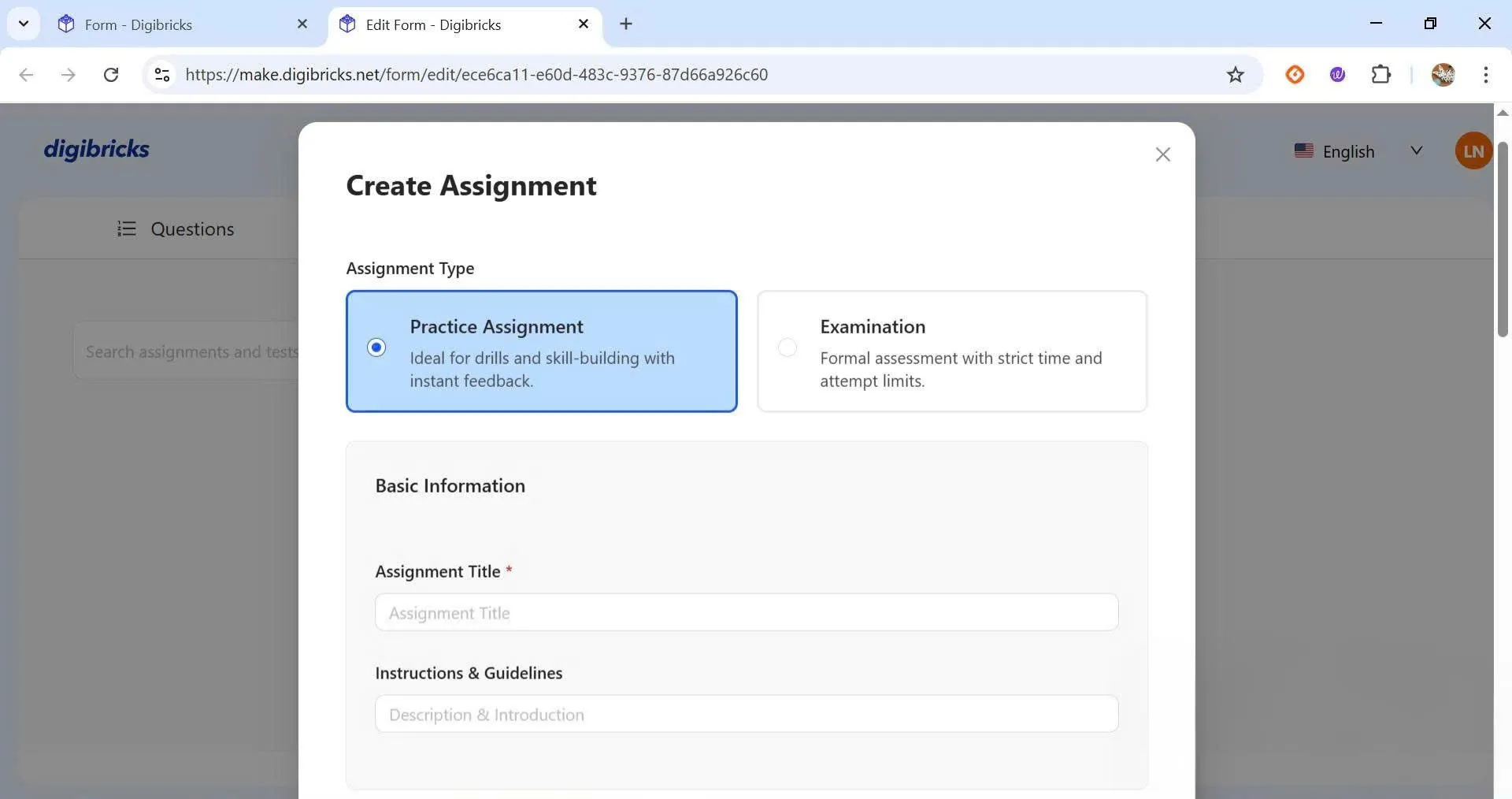
Digibricks provides two assignment types depending on your teaching purpose:
🧩 Practice Assignment: allows students to attempt the task multiple times, suitable for practice and revision.
🧭 Examination: designed for formal tests, where you can limit time, number of attempts, and monitor scores.
Step 3: Enter assignment details
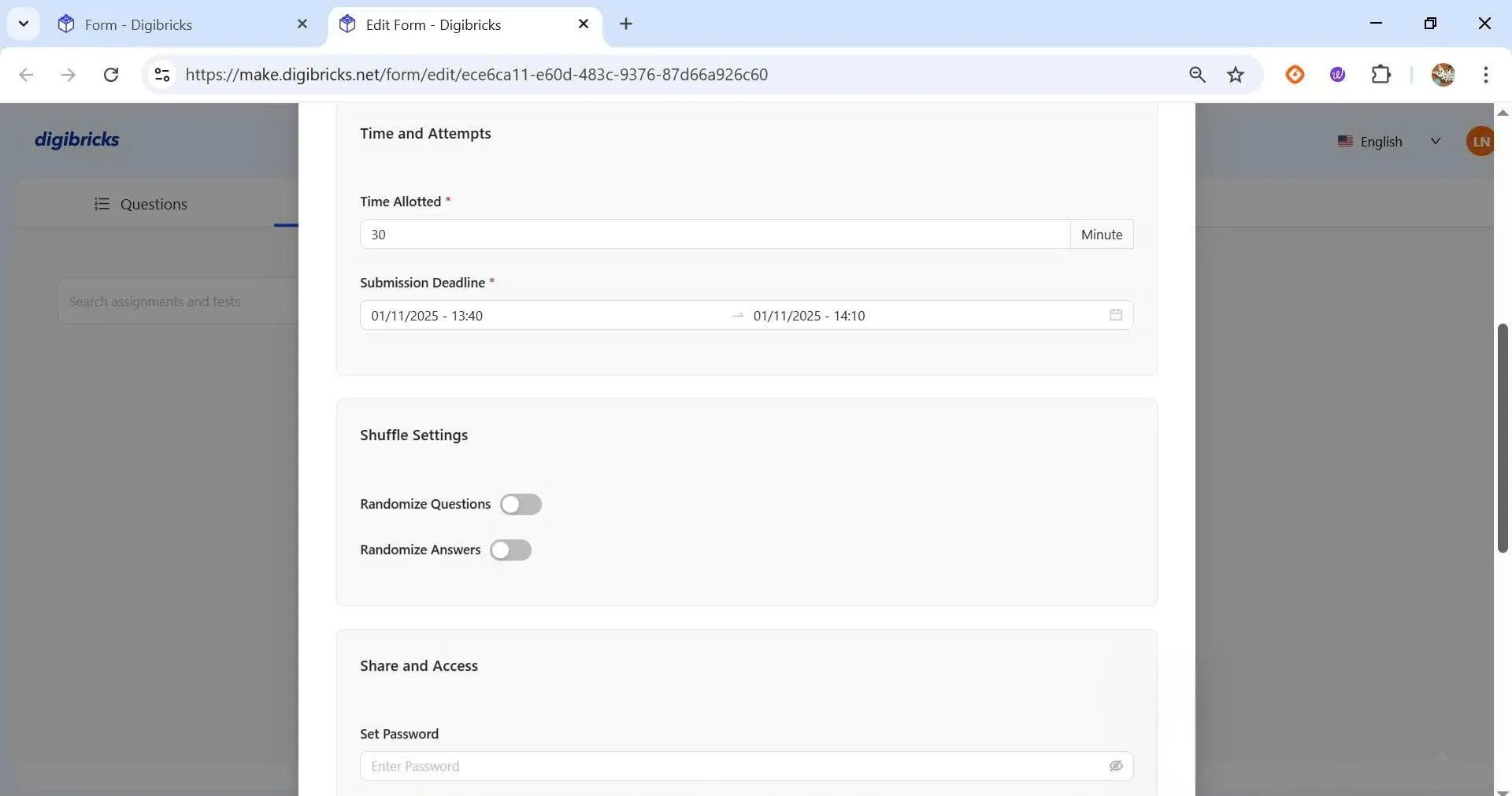
In the Assignment section, you can customize:
- Duration (time allowed for the test)
- Submission deadline
- Password protection
- Score and result display settings
- Answer reveal options, and more
💡 Setting these options carefully helps you manage students’ work more effectively.
Step 4: Create the assignment
Once all settings are complete, click Create Assignment to generate and share the assignment.
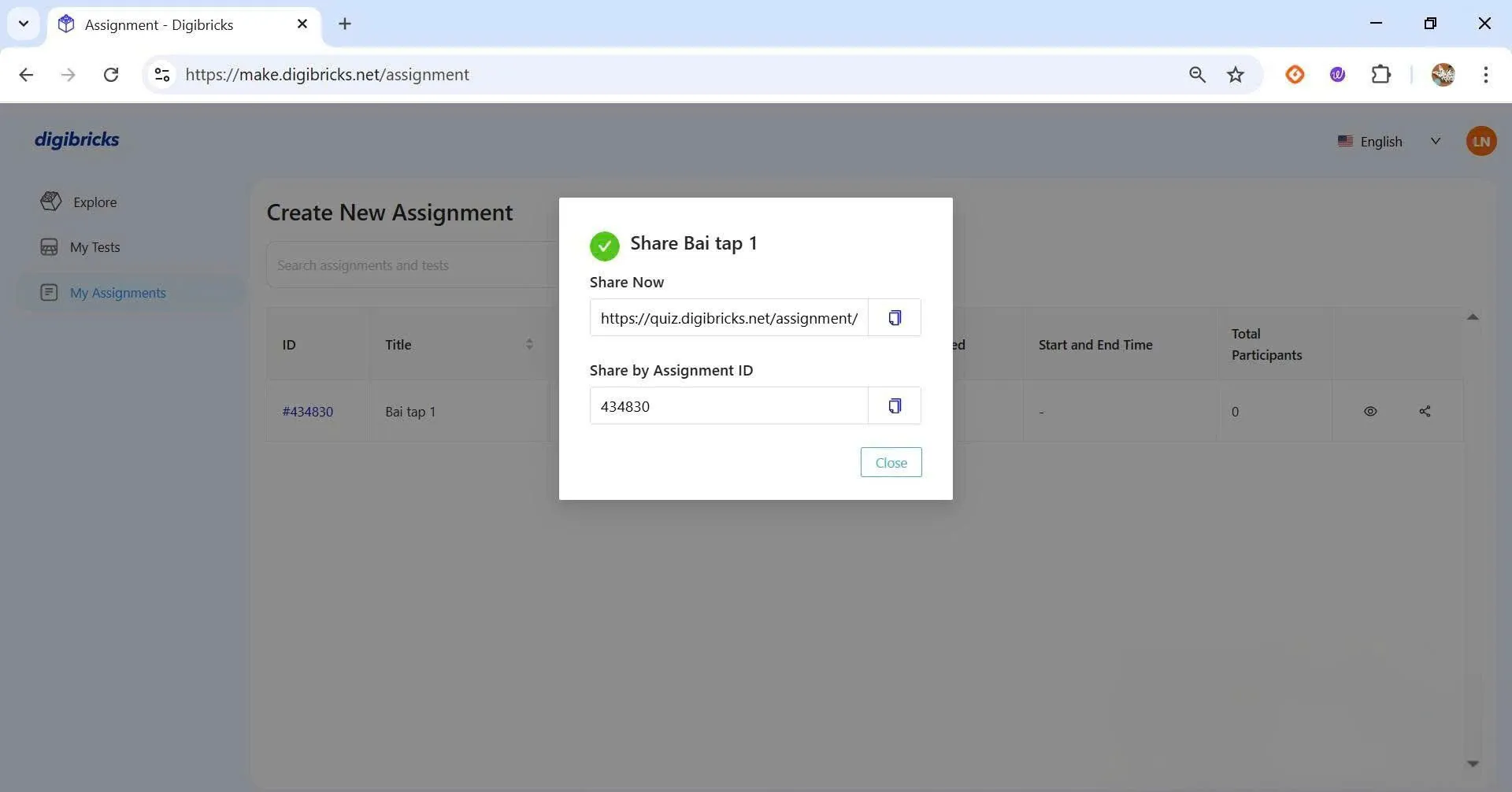
Step 5: Share the assignment with students
Method 1:
- Go to My Assignments to track your created assignments.
- Click the share icon next to the assignment to copy the link or Assignment ID, then send it to your students.
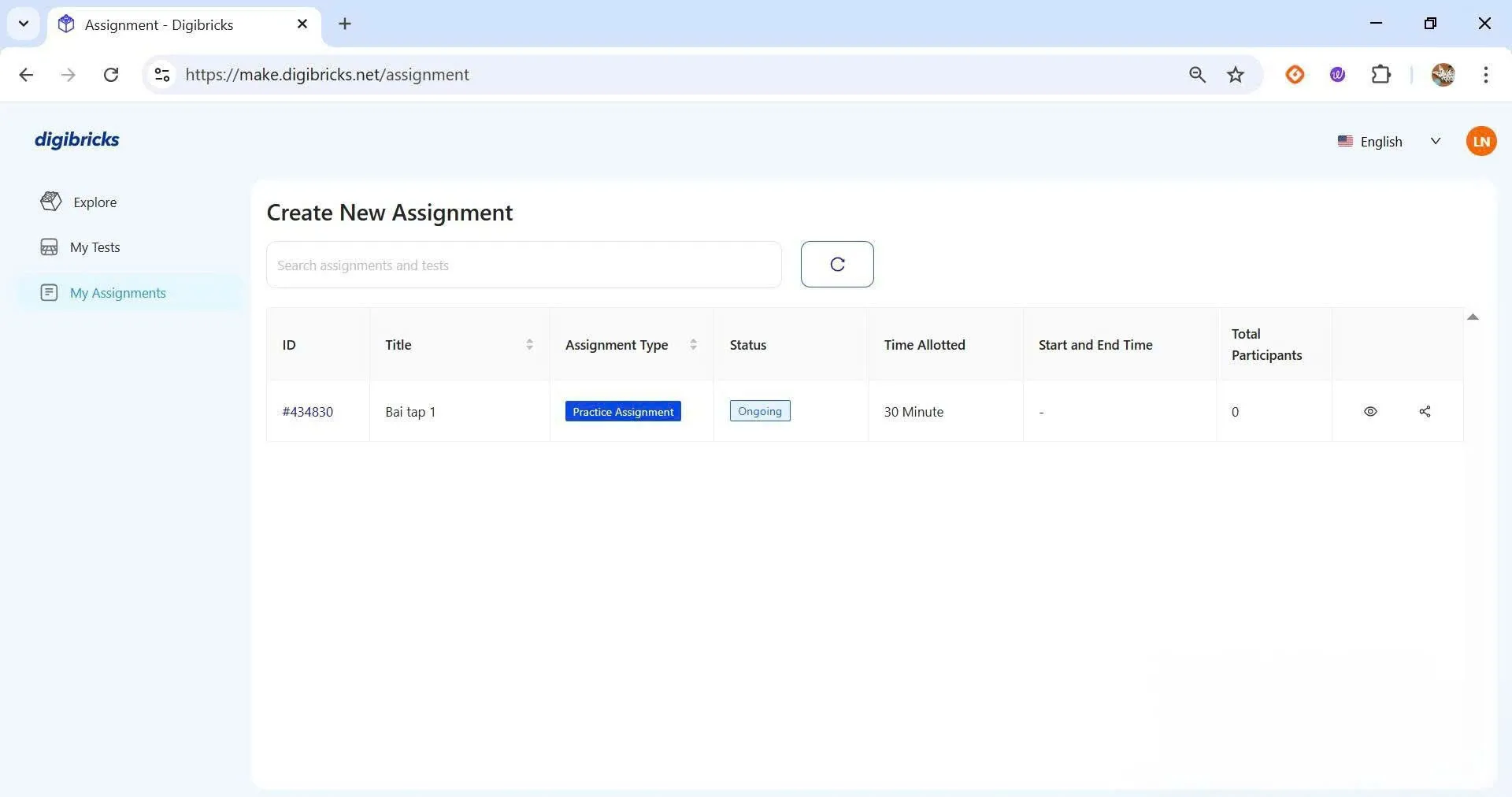
Method 2:
- Click on the ID number on the My Assignments page.
- Under Share Assignment Now, copy the shareable link and send it to your students.
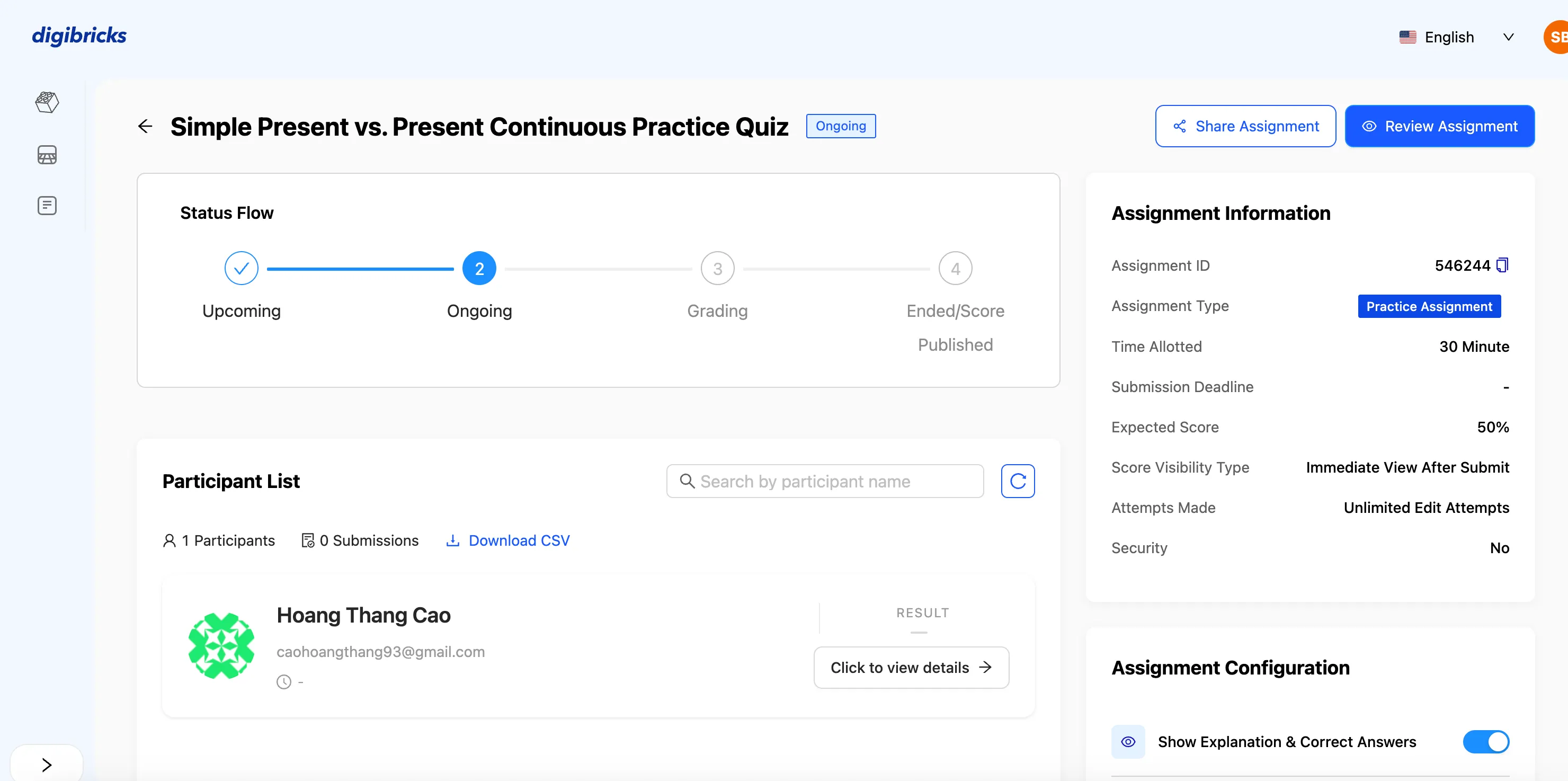
Step 6: Track and manage assigned tasks
By clicking the Assignment ID in the My Assignments page, you can:
- View detailed assignment information (duration, type, attempts allowed, etc.)
- Monitor student progress
- Check scores, number of attempts, and completion status for each student
✅ This feature allows teachers to easily manage, review, and assess student performance all within a single interface.
⚙️ Detailed Features in the Assignment Function
1. ⏱️ Time and Attempts
Time Allotted: specifies the maximum time allowed for students to complete the assignment. When the time runs out, the system will automatically submit the attempt.
Submission Deadline: defines the final deadline for submitting the assignment.
⚠️ In Examination mode, setting a submission deadline is mandatory.
Maximum Attempts: allows you to set the number of attempts a student is allowed to submit.
⚠️ This feature is only available in Practice Assignment mode.
2. 🔒 Share and Access
Set Password:
Allows you to create a password for the test or assignment, helping restrict access and ensure security when sharing with students.
3. 🔄 Shuffle Settings
Randomize Questions: the system will shuffle the order of the questions to help prevent students from copying one another.
Randomize Answers: automatically shuffles answer choices within each question, increasing fairness and integrity during the test.
4. 🧮 Scoring and Results
Practice Assignment:
The system will display the correct answers and explanations immediately after students submit, allowing them to self-learn and improve.
Examination:
Teachers can choose to:
- Show scores immediately after submission, or
- Hide scores and only release them after Publishing the results.
Expected Score: allows you to enter the minimum required score, helping teachers easily assess overall performance.
5. 🛡️ Security Options
For Examination mode, Digibricks provides anti-cheating features to ensure test integrity, including:
Enable Security Features: activates monitoring and detection of suspicious behavior (e.g., opening a new tab, switching away from the test screen, etc.).
Auto-disqualified based on Violations: option to automatically disqualify a student if the system detects violations during the test.