
Guide to Creating Questions on Digibricks
In this section, you will learn how to create different question types to complete your test.
1. Multiple-Choice Questions
Digibricks supports two types of multiple-choice questions:
- Single Choice Question: Only one correct answer.
- Multiple Choice Question: Multiple correct answers are allowed.
Step 1: Create a new question
Click the plus icon (+) inside the blue circle, then select the question type: Single Choice Question or Multiple Choice Question.
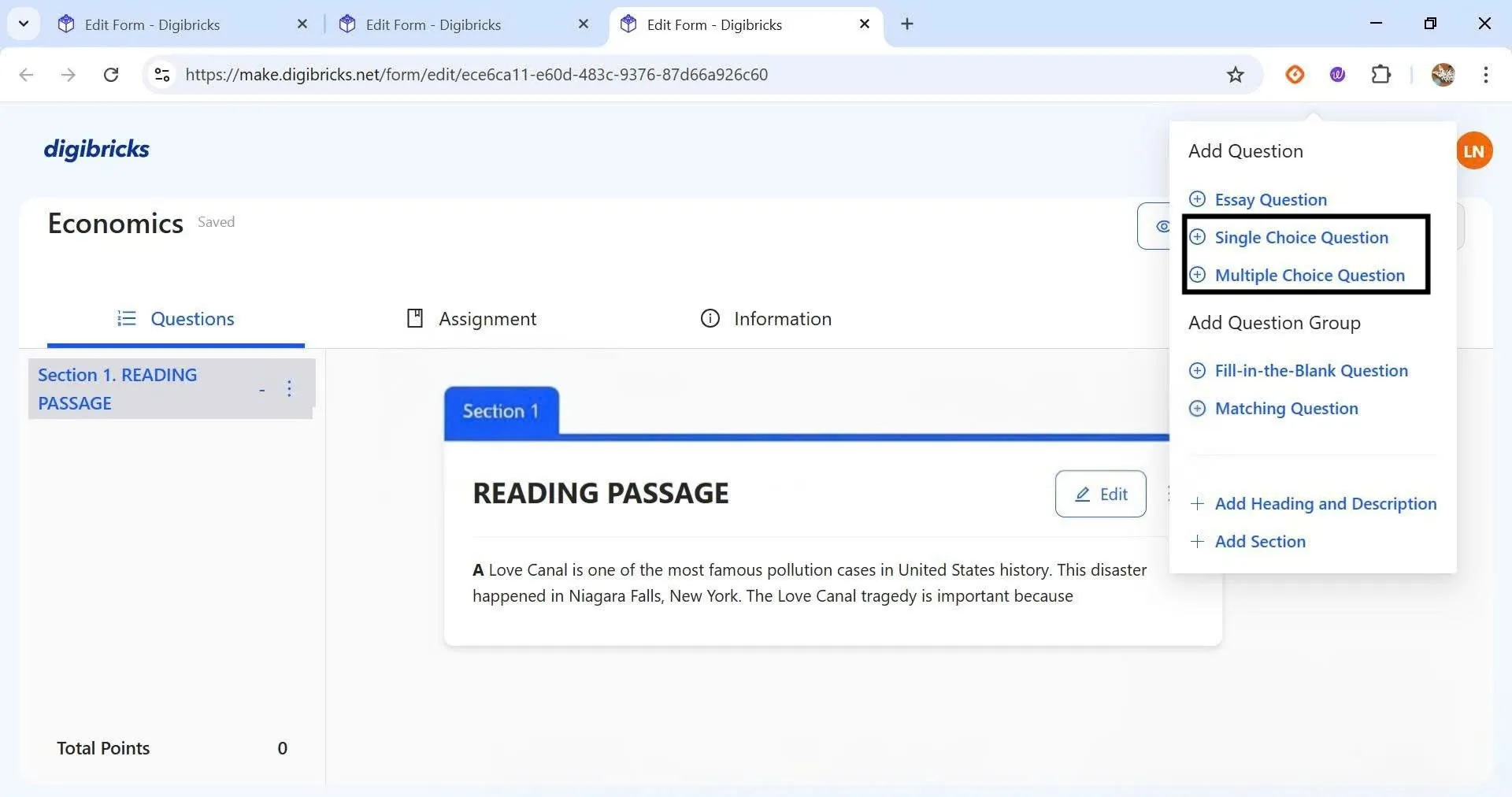
Step 2: Enter the question content
Type your question into the Question field.
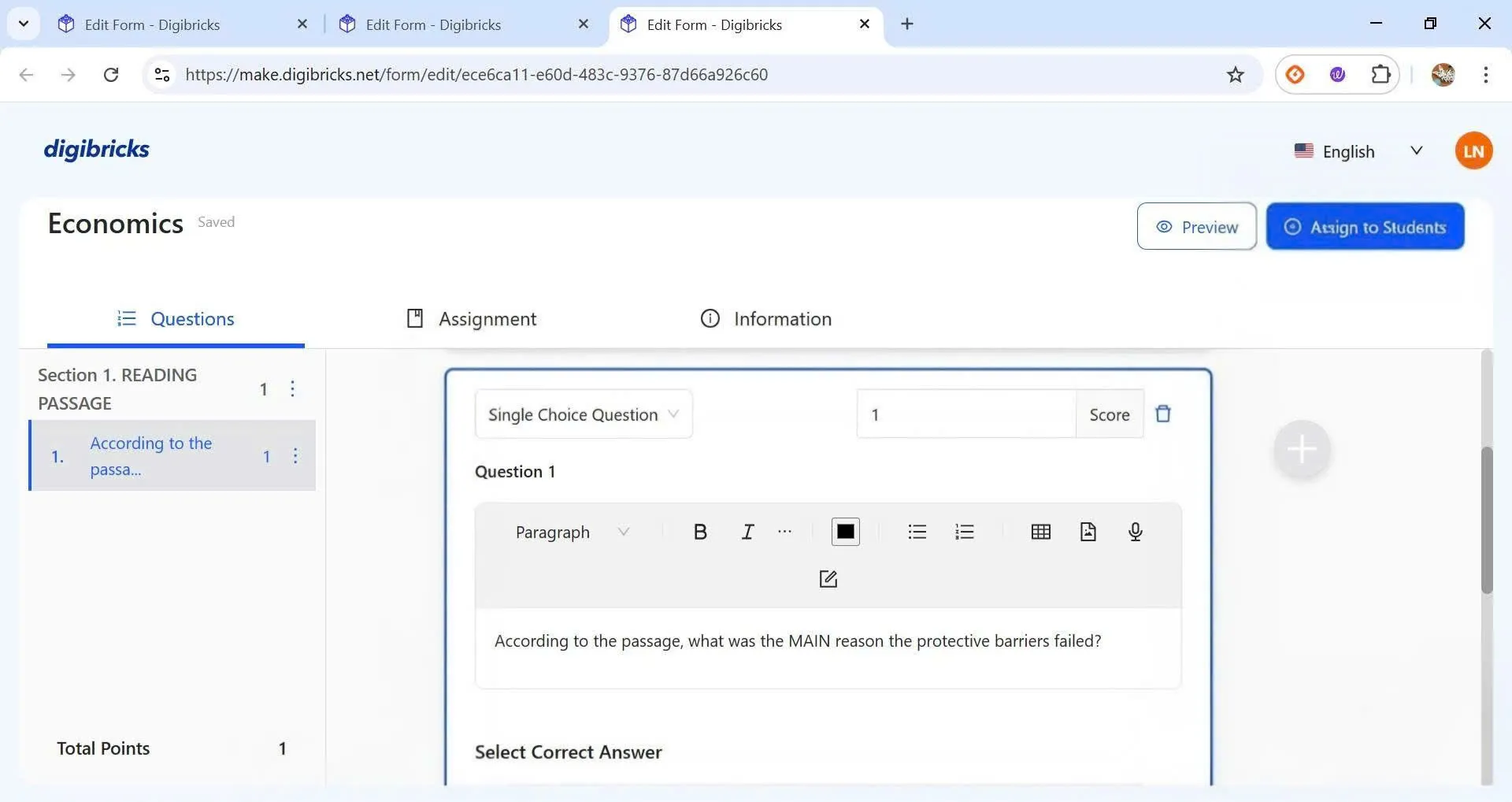
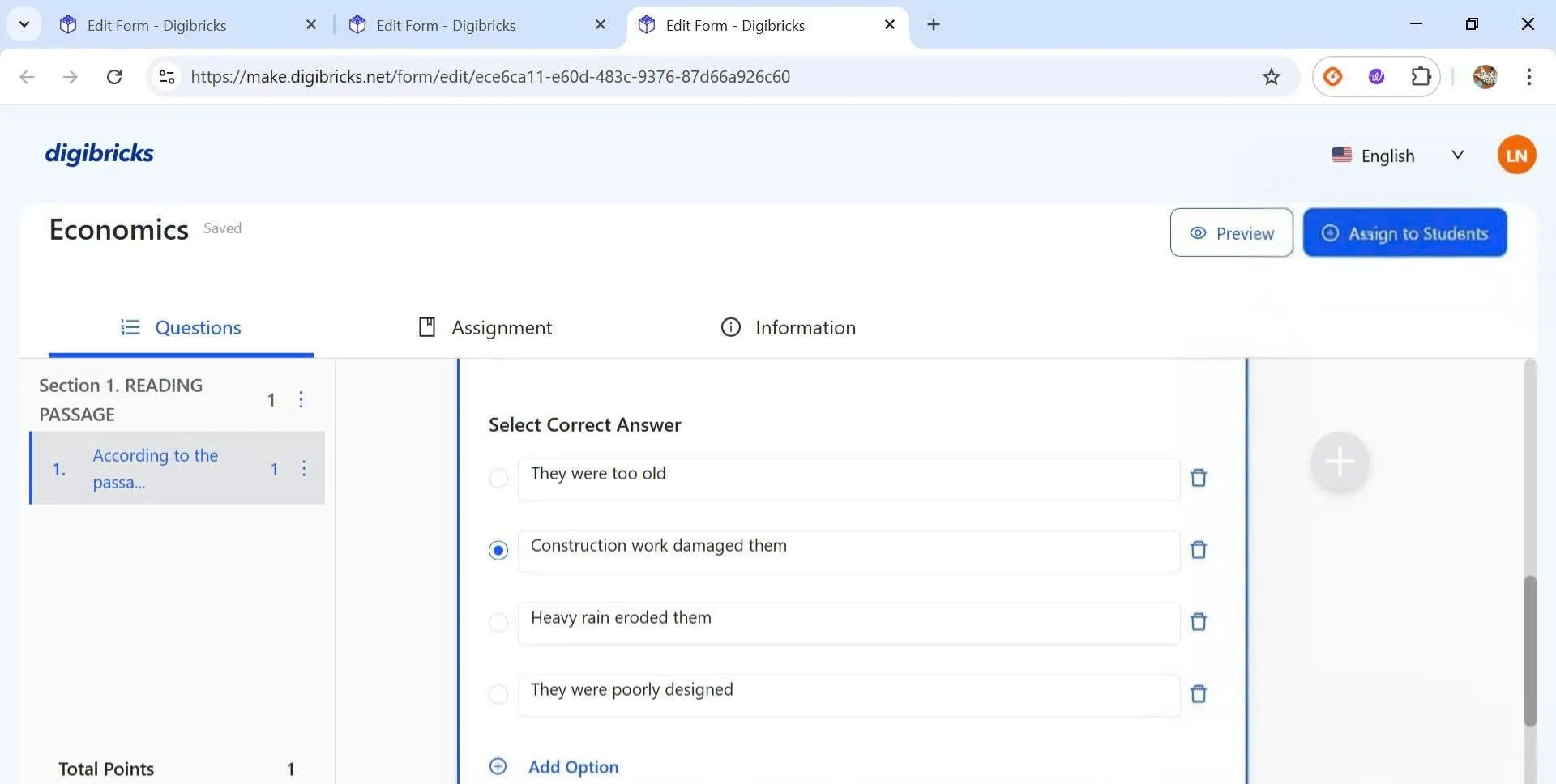
Step 3: Add and select answer options
- Enter the answer options in the Select Correct Answer section.
- Click Add Option to add more choices.
- Mark the correct answer(s) by selecting the corresponding checkbox.
- To delete an option, click the trash bin icon 🗑️ next to it.
Step 4: Assign points
Enter the score for the question in the Score field.
Step 5: Add an explanation (optional)
Click Add Explanation to provide an answer explanation or guidance, helping students understand the correct answer.
Step 6: Save the question
Click Save to complete the creation of your multiple-choice question.