🎓 Student Guide: How to Complete Assignments/Examinations on Digibricks
Step 1: Access the assignment and log in
Click the link provided by your teacher or enter the Assignment ID. Then, log in using your Digibricks account or Gmail account to begin.
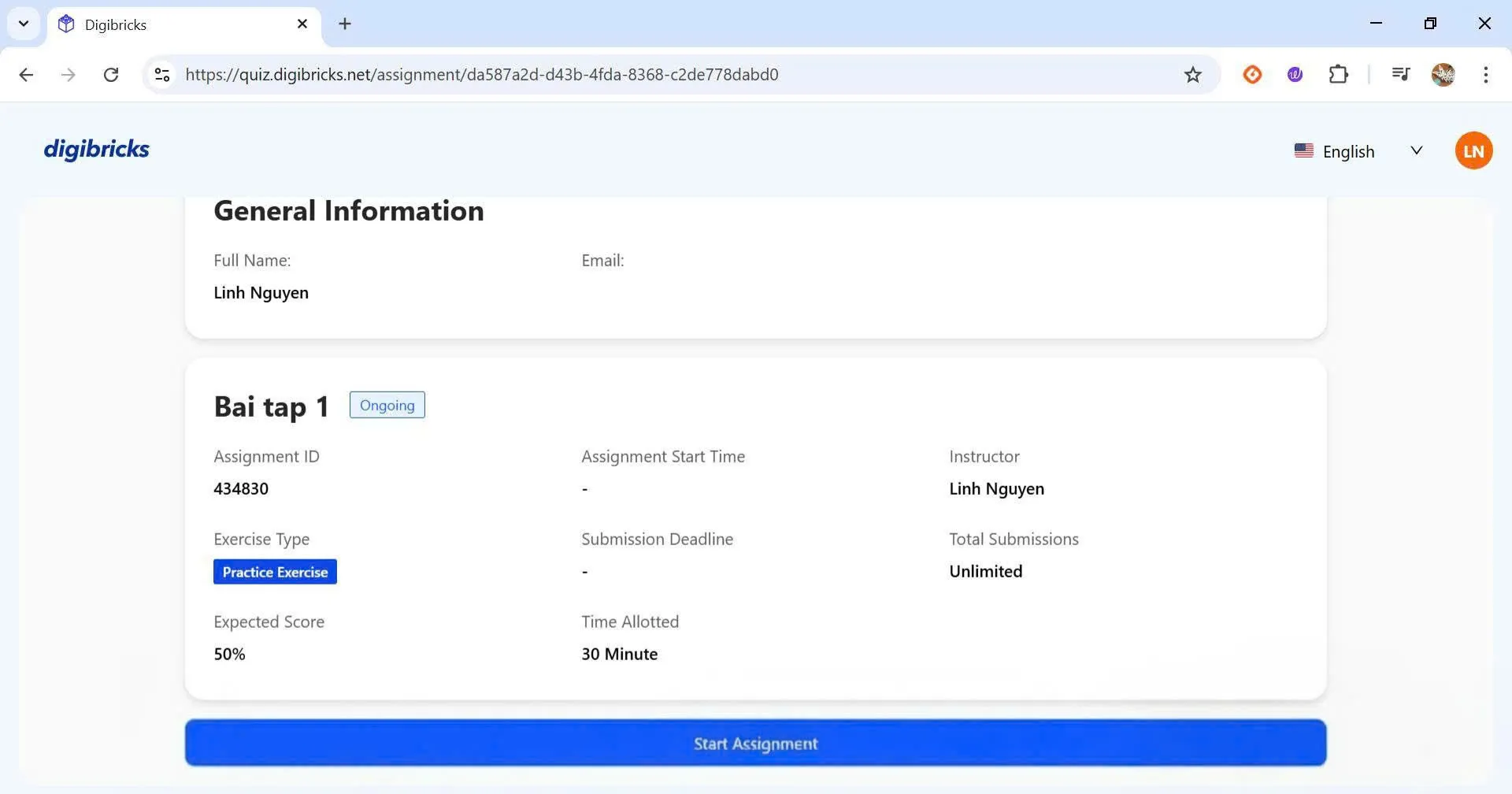
Step 2: Start the assignment
Click Start Assignment to enter the workspace.
The system will display important information such as:
- Time allowed (if set by the teacher)
- Number of attempts available
- Submission deadline, if applicable
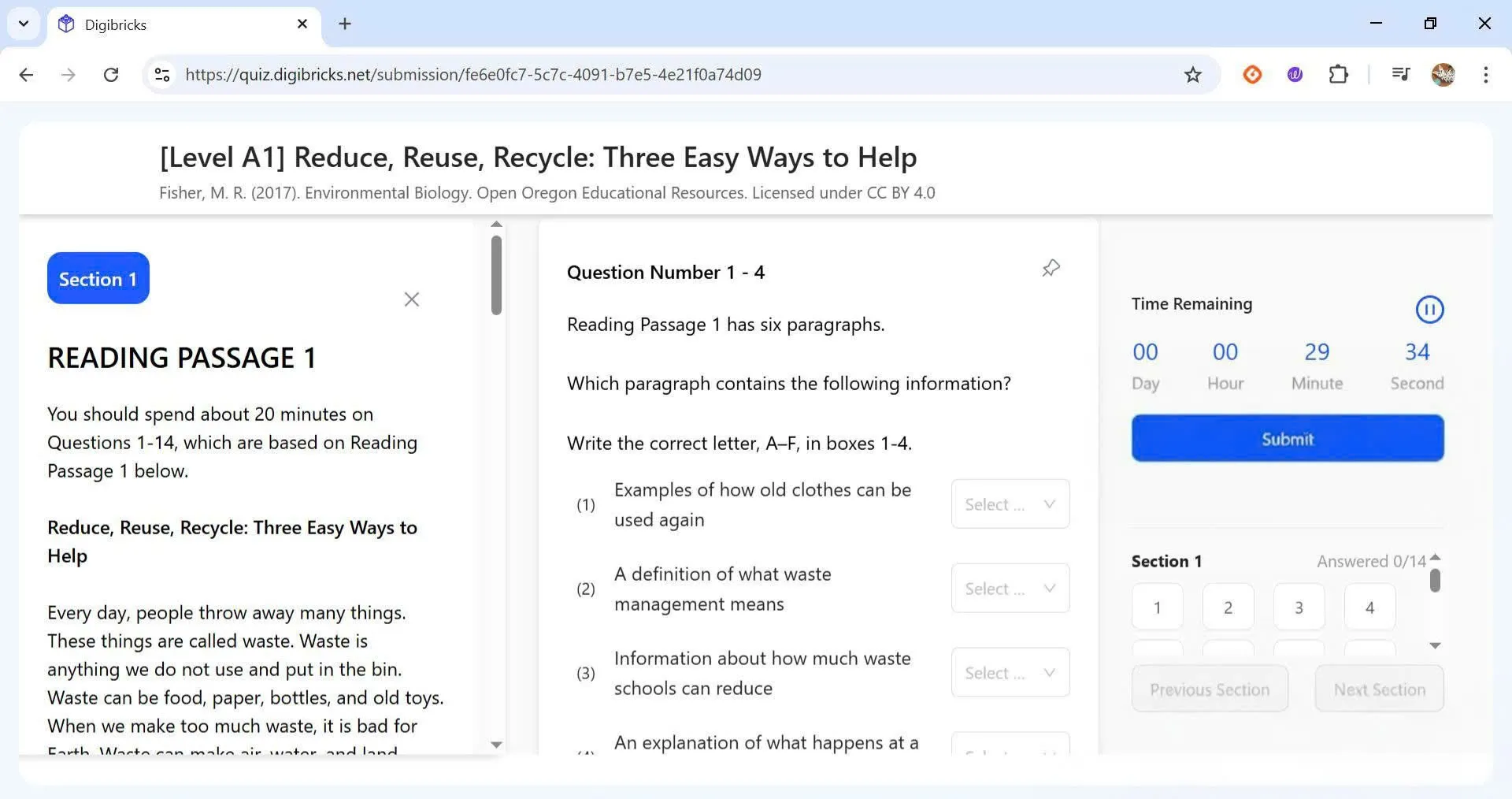
Step 3: Complete the assignment
Read each question carefully and respond according to the instructions:
- For multiple-choice questions, select the correct option.
- For fill-in-the-blank questions, type your answer in the corresponding blank.
- For matching information/headings, choose the correct matching option.
- For essay questions, write your response in the answer box provided.
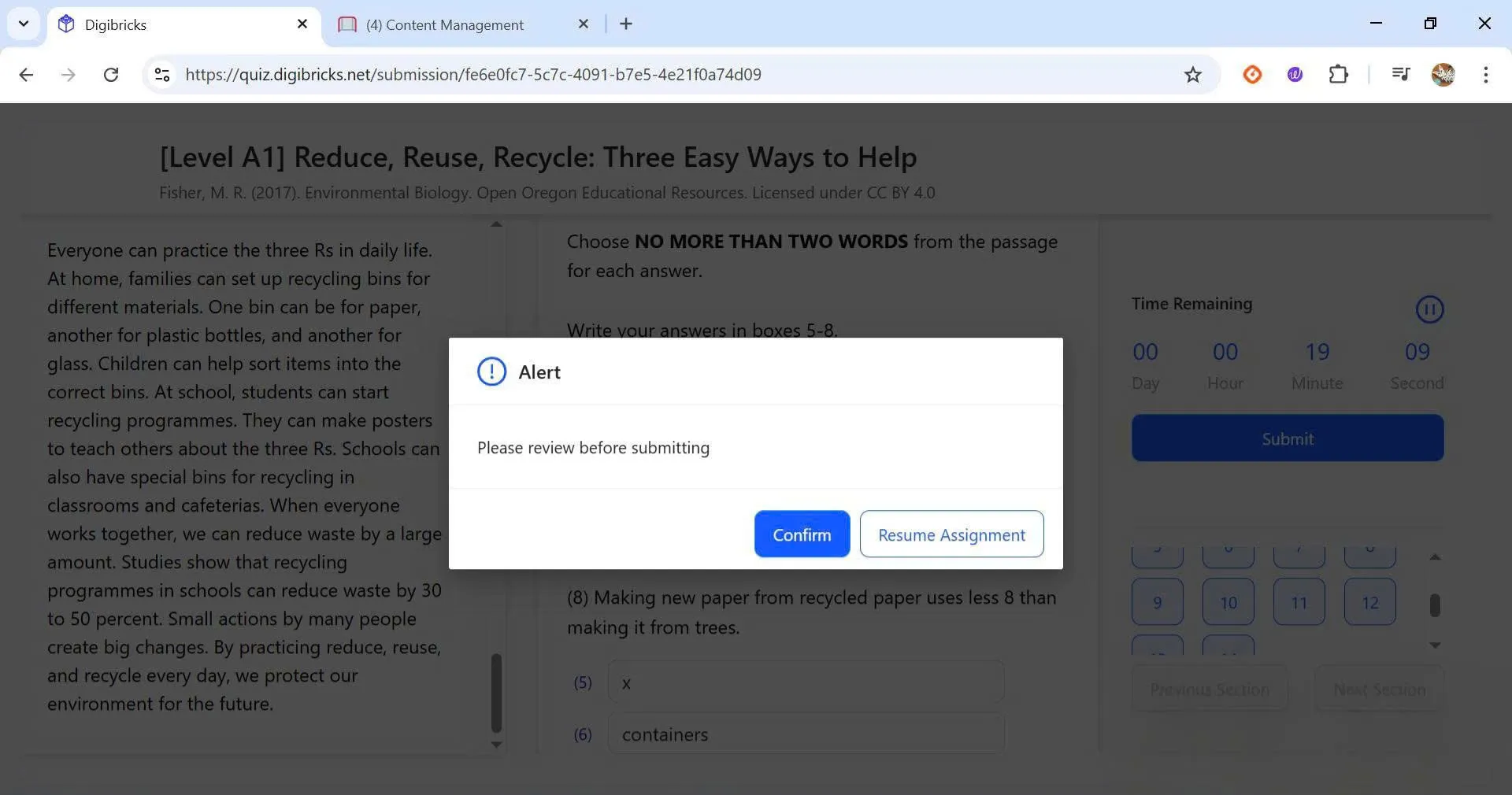
Step 4: Submit your work
When you finish:
- Click Submit to send your answers.
- If you want to review your work before submitting, click Resume Assignment to return to the test.
- Click Confirm to submit your final answers.
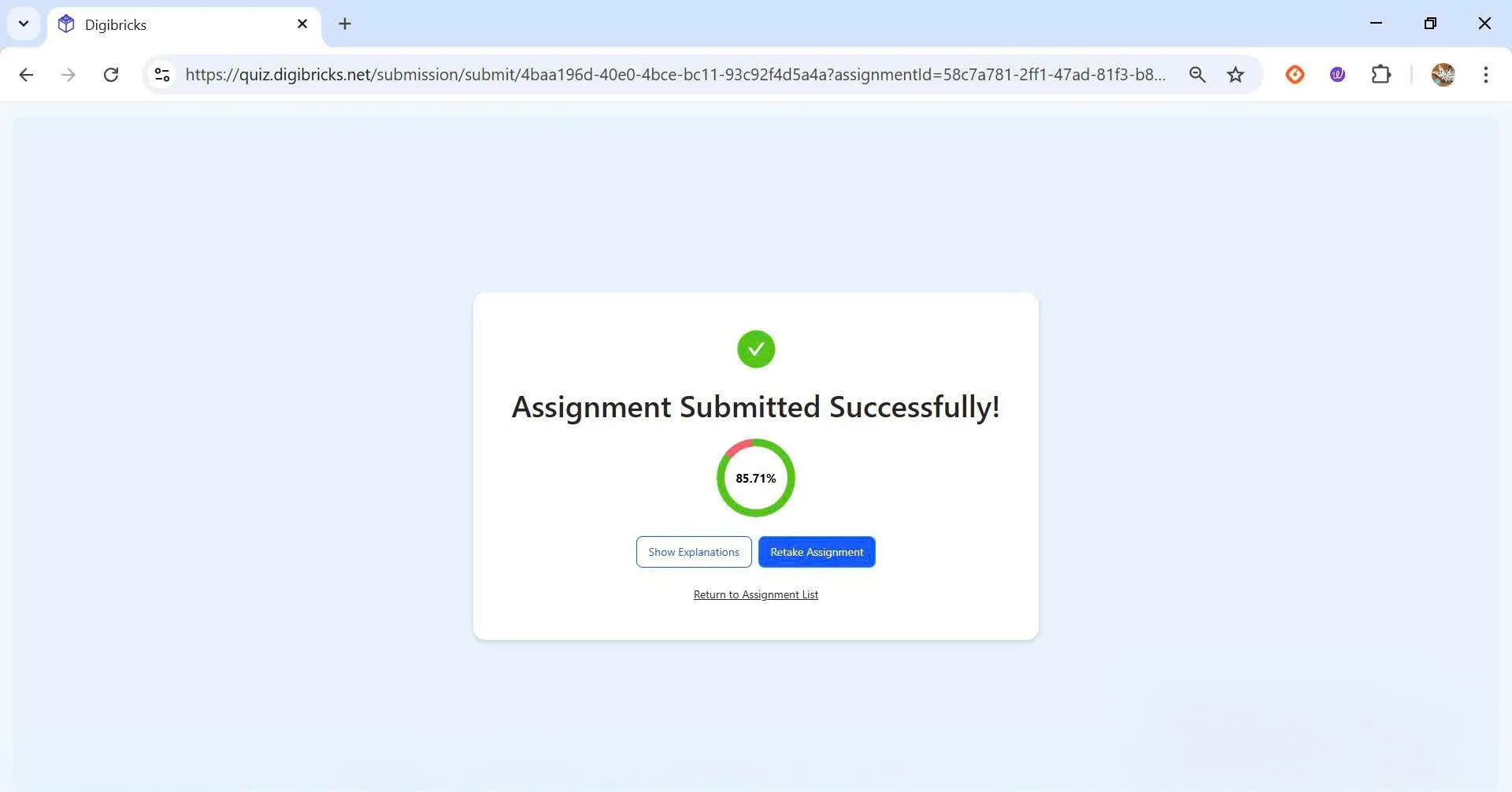
Step 5: View your results
After submitting:
- For a Practice Assignment, your score and answer explanations will appear immediately.
- For an Examination, results will be shown after your teacher completes the grading or publishes the exam results.