
WOODPECKER uses Digibricks not only for assignment delivery and test creation, but also for live answer review during class. The real value is not just digitizing the workflow. It is giving teachers and students one shared screen where they can see mistakes, scores, and corrections clearly in the moment.
Classroom context
In language classes, especially test-prep classes or sessions that require regular answer review, teachers often need to handle several things in the same lesson:
- preparing materials and building the test
- assigning the work to the right class
- checking who submitted and who did not
- opening each student submission for review
- explaining in class why an answer is correct or incorrect
When those steps are split across different tools, classroom review becomes fragmented. Teachers jump between files, screenshots, messages, or score sheets, while students struggle to follow exactly where they made a mistake.
How WOODPECKER uses Digibricks
At WOODPECKER, Digibricks supports a more connected workflow before, during, and after class:
- Teachers prepare assignments or tests from the materials they already use.
- The system delivers work directly to the right class or group.
- Teachers track submissions and results in one place.
- During review sessions, teachers open the grading screen to inspect each answer in detail.
- Students can immediately see which answers were right, which were wrong, and what needs to be corrected.
Key use case: live answer review in class
From the classroom example in the attached screenshot, Digibricks is being used through the Grading view to review student work live during class:
- the left side shows the selected student submission
- the center shows each question, the chosen answer, and whether it is correct or incorrect
- the right side lets the teacher move quickly between students in the class
- scores and grading progress are visible on the same screen
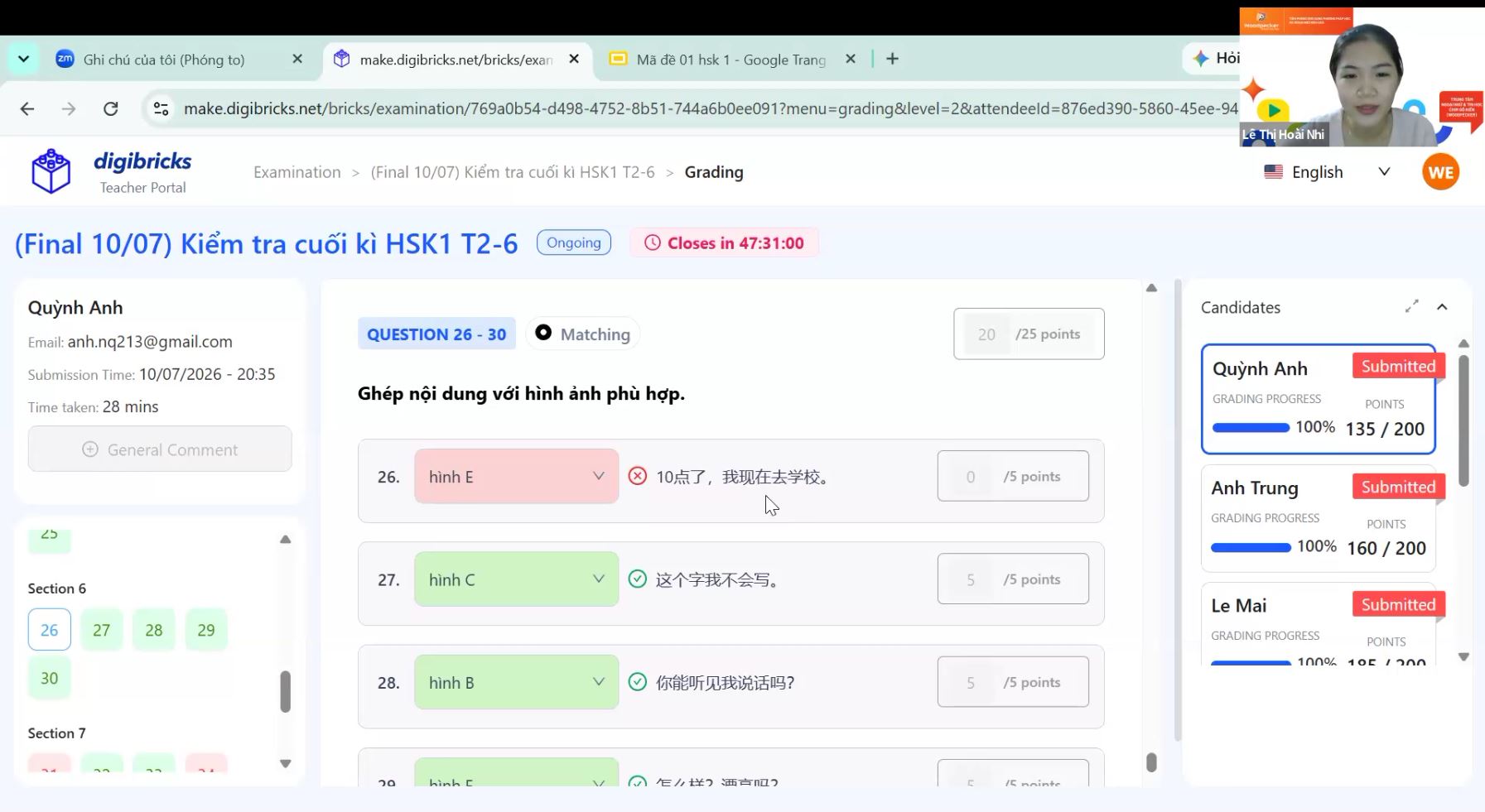
An example classroom review session using Digibricks, where the teacher can inspect each answer in detail and switch between student submissions from the same screen.
This makes classroom review much more concrete. Instead of only saying “this answer is wrong,” the teacher can point to the exact item, show what the student selected, explain why it is incorrect, and clarify what thinking or language point needs to be fixed. In language learning, that matters because students often need to understand whether the mistake comes from vocabulary, structure, context, or interpretation, not just the final answer key.
For the center, this also makes review sessions less fragmented. Teachers do not have to manually collect information from separate tools before class, and students can follow the correction process more clearly while the lesson is happening.
Practical value for WOODPECKER
The biggest value for WOODPECKER is not only saving time on building and assigning work. It is turning answer review into a more structured part of the teaching process. Digibricks connects assignment delivery, submission tracking, grading, and in-class correction in one flow, making teaching sessions more coherent and helping students understand their mistakes more precisely.
For a center that needs to keep teaching quality consistent across multiple classes and teachers, this is a highly practical use case: the tool supports operations, but it also directly improves the classroom learning experience.